 BookWard
Add BookWard to your phone
It takes a minute, then it works like any other app, and you can get gentle reminders to keep reading and stay on your goal.
Watch the video (about a minute), then follow the steps below.
Open this page in Safari first
You're viewing this inside another app, and Add to Home Screen only works from Safari. Tap the ⋯ or Share button here and choose Open in Safari, or copy app.bookward.ai/install into Safari.
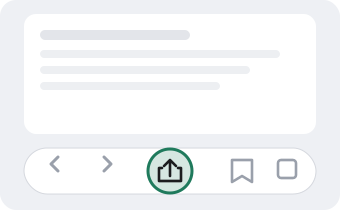
Tap the Share button
It's the square with an arrow, at the bottom of Safari. On newer iPhones it may be under the ⋯ button.
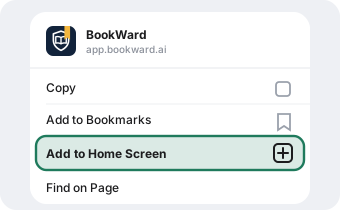
Choose Add to Home Screen
You may need to scroll down in the list to find it.
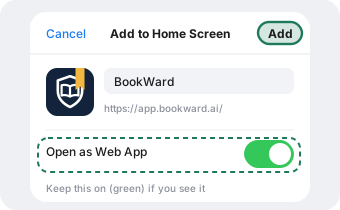
Tap Add
Keep the name BookWard. If you see Open as Web App, leave it on.
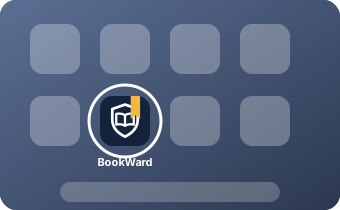
Open it from your Home Screen
Use the new BookWard icon (not Safari). Sign in, then go to Settings → Reminders → Turn on reminders.
Reminders need iOS 16.4 or newer. If you can't find Add to Home Screen, update iOS in Settings → General → Software Update.
Open the menu in Chrome
Tap the ⋮ button at the top right.
Tap Install app (or Add to Home screen)
Then confirm. BookWard appears with your other apps.
Turn on reminders
Open BookWard, sign in, then go to Settings → Reminders → Turn on reminders.
Install it on this computer
No Install button appeared. If BookWard is already installed on this computer, open it from your Dock, Launchpad or Start menu. Otherwise use the steps below.
Chrome or Edge
Click the Install icon at the right end of the address bar (a small screen with a down arrow), then Install. Or open the browser menu and choose Cast, save and share (or Apps in Edge), then Install page as app.
Safari on a Mac (Safari 17 or newer)
In the menu bar choose File, then Add to Dock, then Add.
Windows PC or Firefox
On Windows, Edge (already installed) and Chrome use the first option and the app appears in your Start menu. Firefox on a computer can't install apps, but BookWard and its reminders still work in a Firefox tab.
Turn on reminders
Open BookWard from your Dock or Start menu, sign in, then go to Settings → Reminders → Turn on reminders. Allow notifications when asked.
Do this on your phone too
Text yourself the link app.bookward.ai/install and open it on your phone. The video above shows the iPhone steps.